Background
You can find more technical detail and usage instructions in the ODKey repo.
I made the ODKey to prank my coworker and send messages to our entire company from his Slack account. It almost worked, but I forgot to revert my script from a test channel to a real one, so he caught it furiously trying to type to a non-existent channel. I’ve never seen someone unplug a USB device that fast. Ah well, next time.
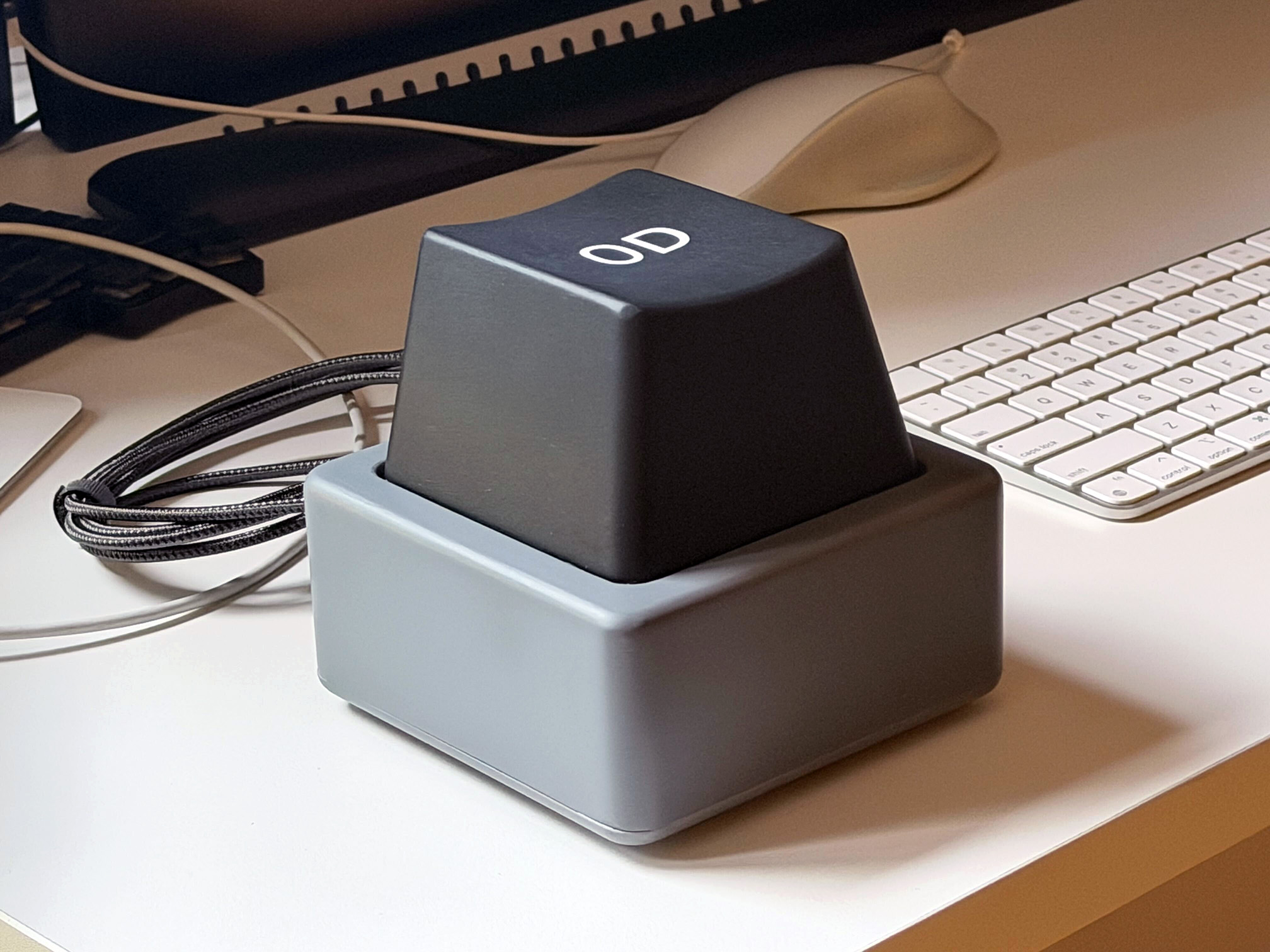
I bought a 3D printer earlier this year and have been printing random things for my coworkers. Usually, they’ll find a model on a site like makerworld and send it to me for printing. These prints take little effort on my part, and they’ve helped me learn more about the printer and 3D printing in general.
Near the end of September, I announced in Slack:
Me: My 3D printer will be idle for a bit, if anyone wants something printed. I promise not to put teeth in it, unless you ask.
The teeth thing is a running joke from a previous prank. Ignore that. What’s important is that one of my coworkers, OD, replied:
OD: Can I get a single functioning keycap the size of a normal macbook keyboard? Feel free to add teeth to it.
For context: giant keyboards had become a meme at work, with people bringing in ridiculously large keyboards and holding typing contests.
Me: You want one big keycap to cover your MacBook keyboard? And what does “functional” entail here?
OD: It can be pressed. Not to cover, just the size of it. No need to send input, just be physically clicky like one of [other coworker]’s giant keys
Me: Oh. I see. Hm unless you can find an existing design online, that requires Jerry’s Design Services, which are a scarce resource.
OD: I think it should be possible to just scale up a mx keycap stl to have the stem slots fit a kailh giant switch, a spacebar with multiple stem slots scaled up to that amount would probably be the easiest
Me: Hmm. We’ll see if Jerry’s Design Services get bored enough to try that. If they are, what would the key silkscreen be? Spacebar (blank)? Letter/number? Etc.
OD: I think it could be blank, or if Jerry’s design services are amused to, maybe [our company name] or something like that on a space bar
Now, I generally don’t target individuals with pranks, but this coworker had just opted himself into one. And Jerry’s Design Services did get very bored, so I decided to take on his request, with a few modifications that would be more fun for me.
First, the key would be large, but not the size of a MacBook keyboard. That would have required more mechanical design work than I cared to take on, and a much longer print. Instead, I settled on a more manageable 100mm x 100mm x 65mm keycap: still comically large, but not so large that it would need more mechanical stabilization than an off-the-shelf switch could provide.
Second, the key would be functional, and not just in the sense that it could be pressed and make a click sound. It would enumerate as a USB HID keyboard and emit key presses when pushed. I decided to implement a rudimentary scripting language so that the button’s function could be updated. By default, it would type my coworker’s initials, “OD”—hence the name “ODKey.”
Third, and this was very important, it would contain a WiFi radio and an HTTP interface that would let me send keypresses of my choosing to whatever computer the ODKey was plugged into.
The Making Of
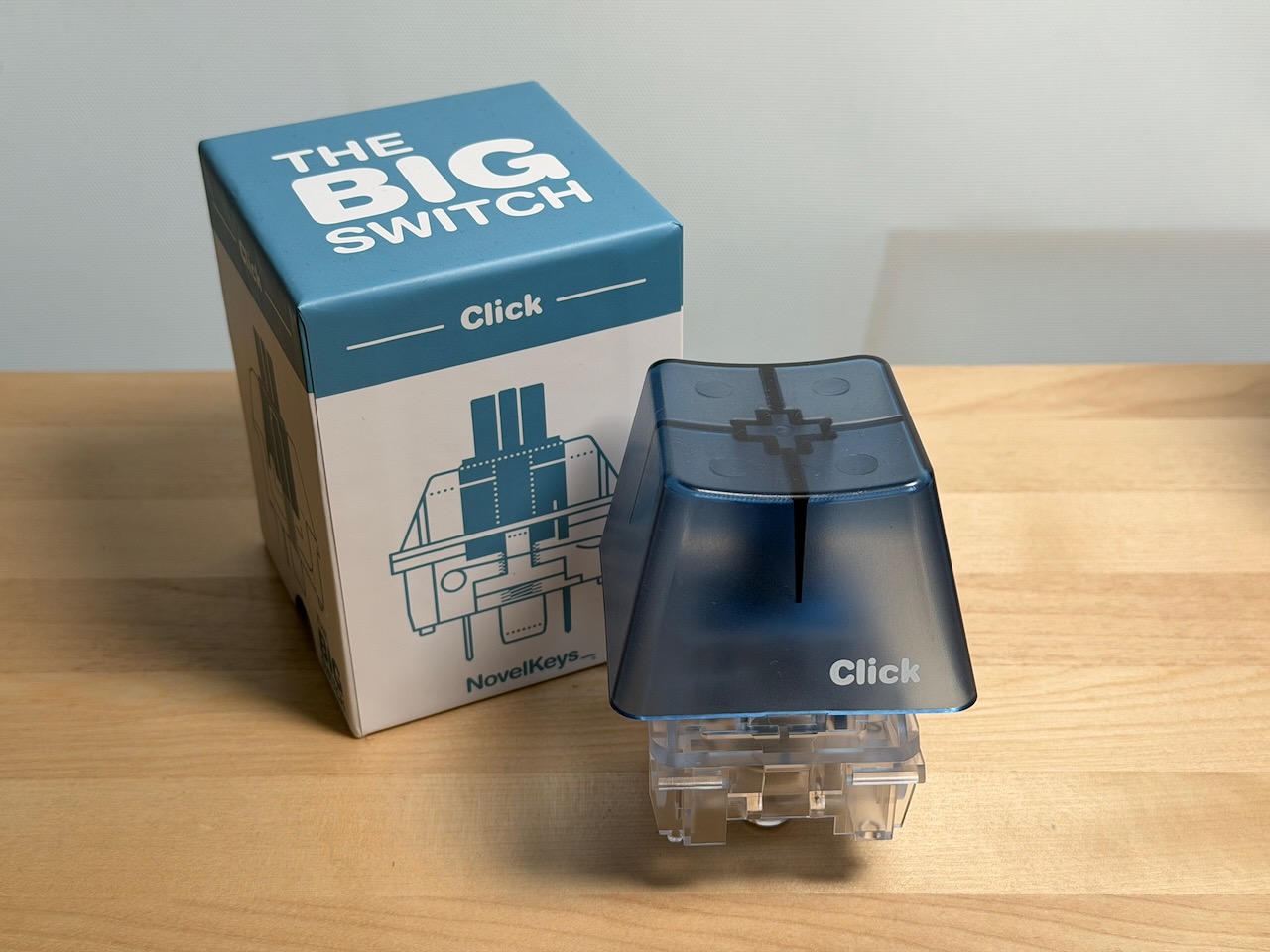
To begin, I sourced a large mechanical switch because I didn’t want to create the switch mechanism from scratch. I found the NovelKeys Big Switch series and purchased the blue Clicky model from Adafruit.
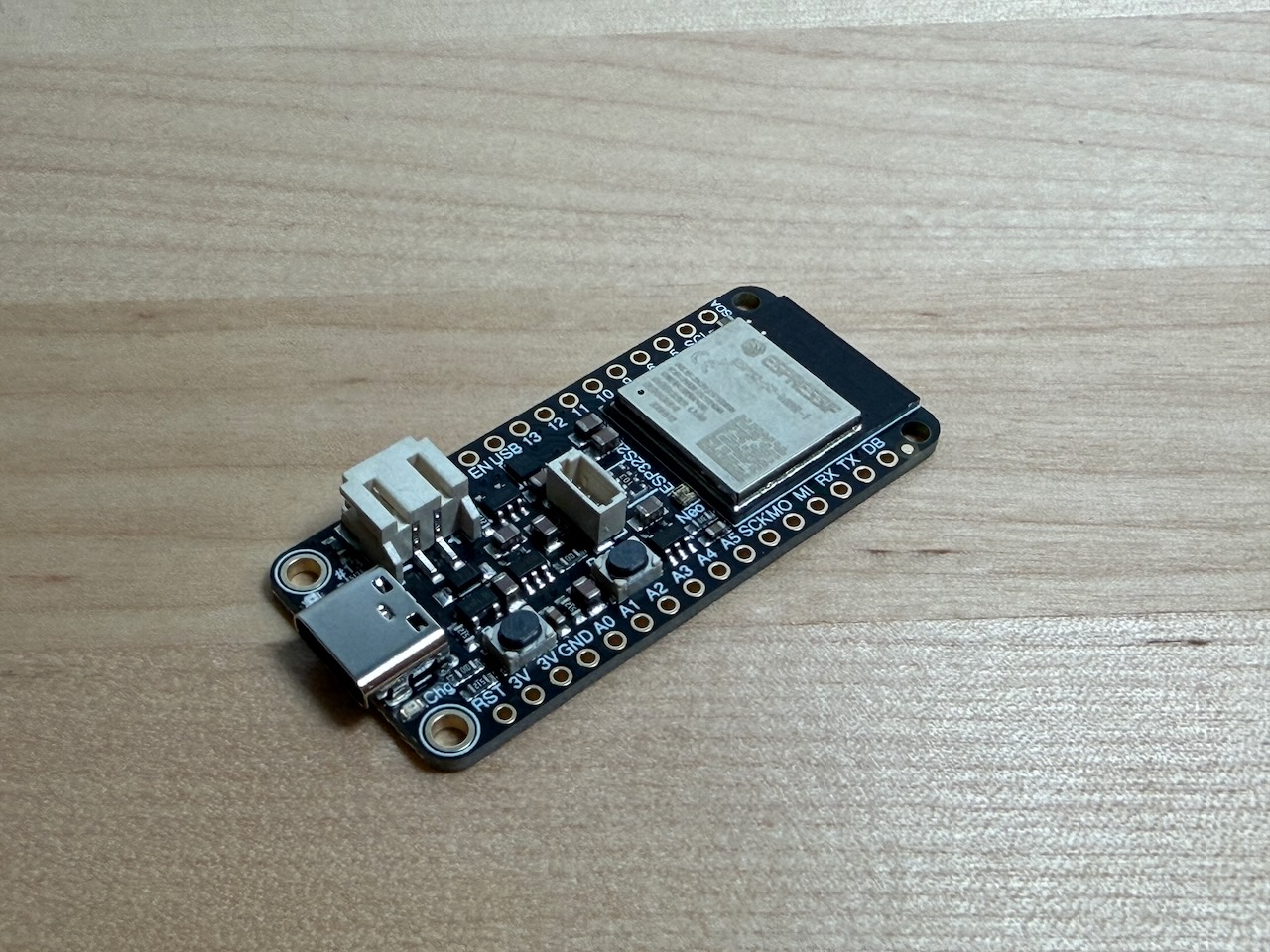
Next, I needed a microcontroller with both USB device and WiFi functionality. The Espressif ESP32-S2 has both, and Adafruit offers the ESP32-S2 Feather, which puts the chip on a PCBA with a nice, small form factor.
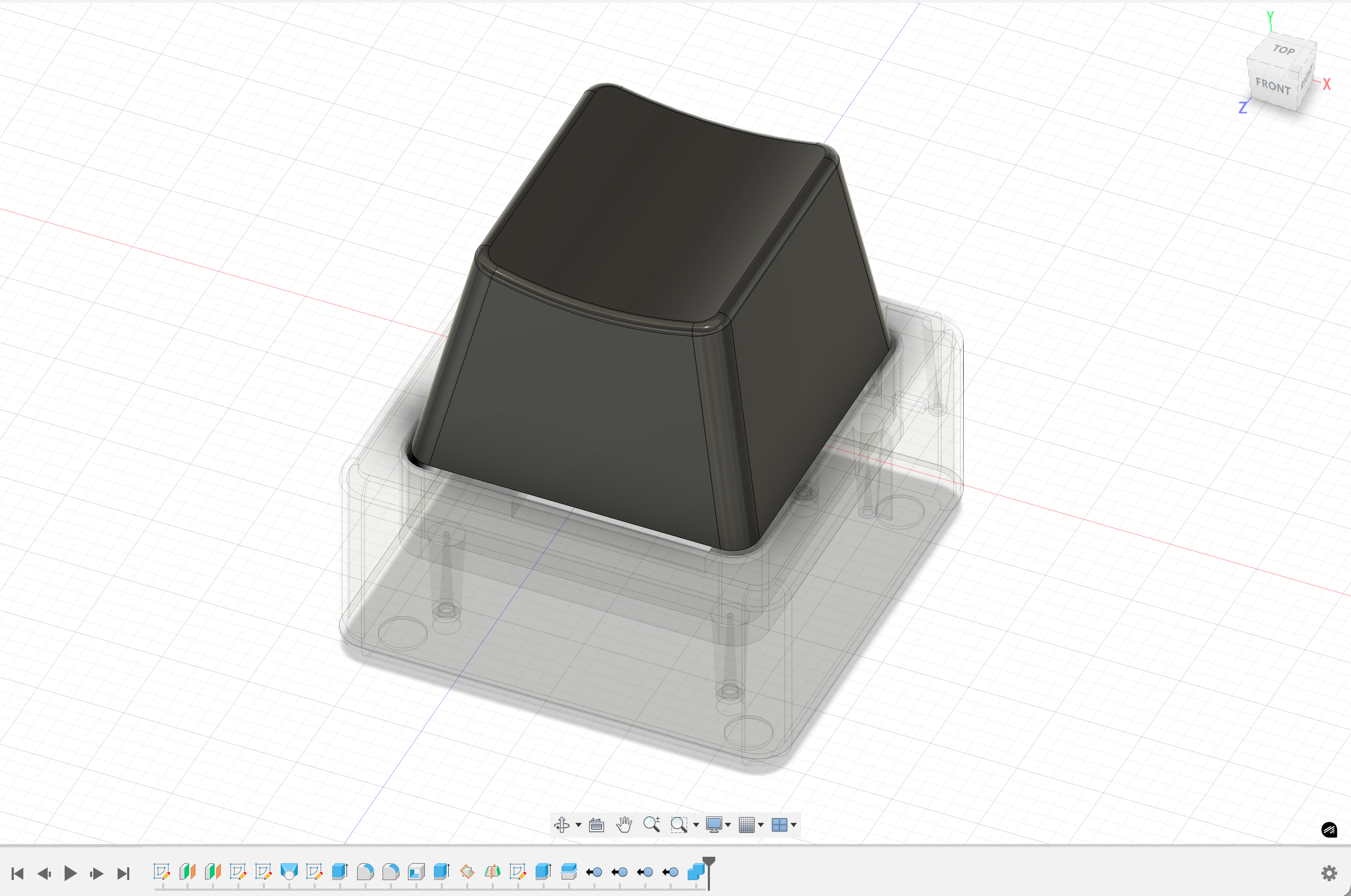
I took measurements from the blue keycap that came with the Big Switch and used them as a rough guide to model my own keycap, scaled up about 1.4x.
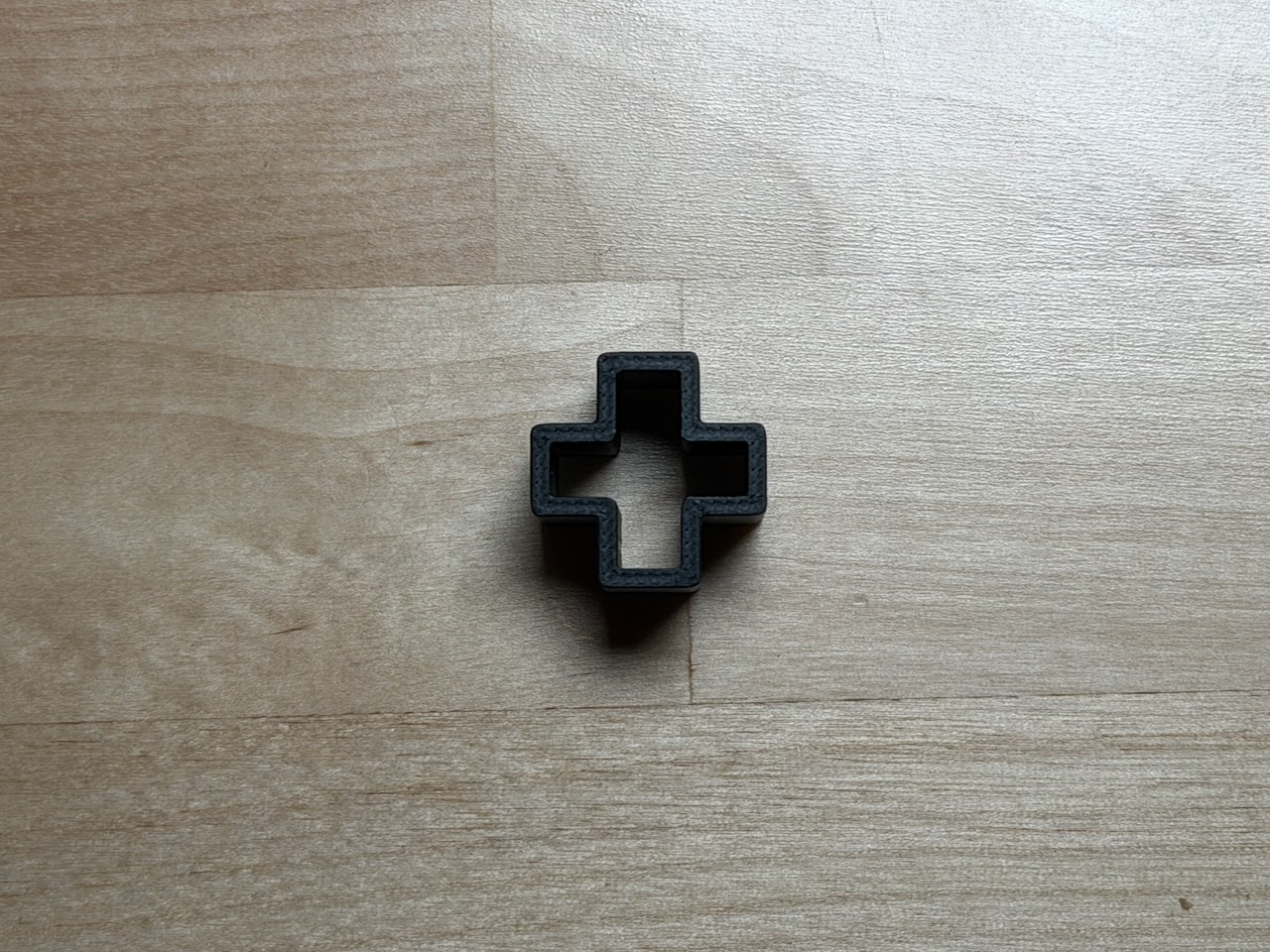
This was an early test print to make sure I had the geometry and tolerances right for the part of the keycap that slides over the switch’s stem.
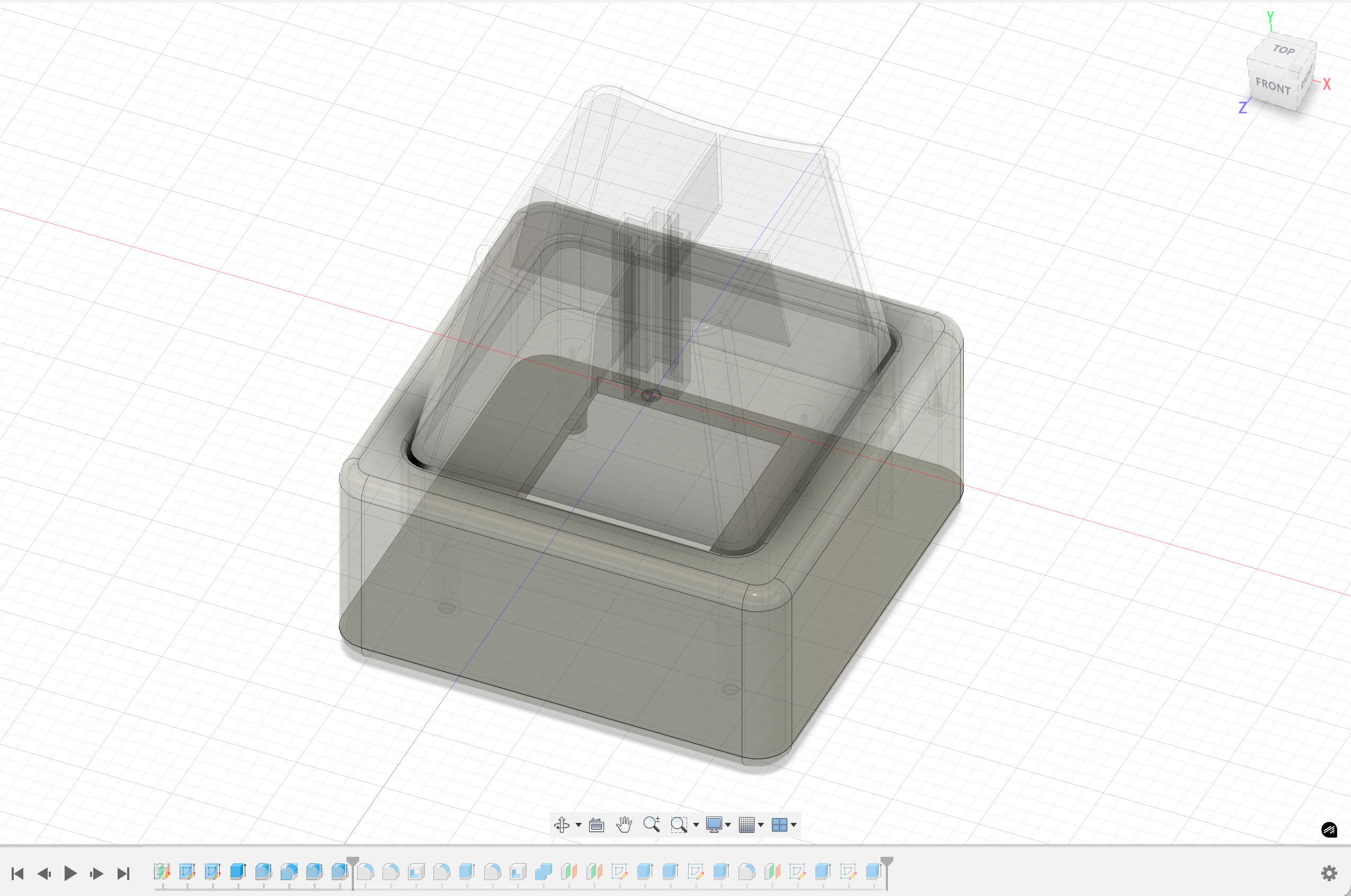
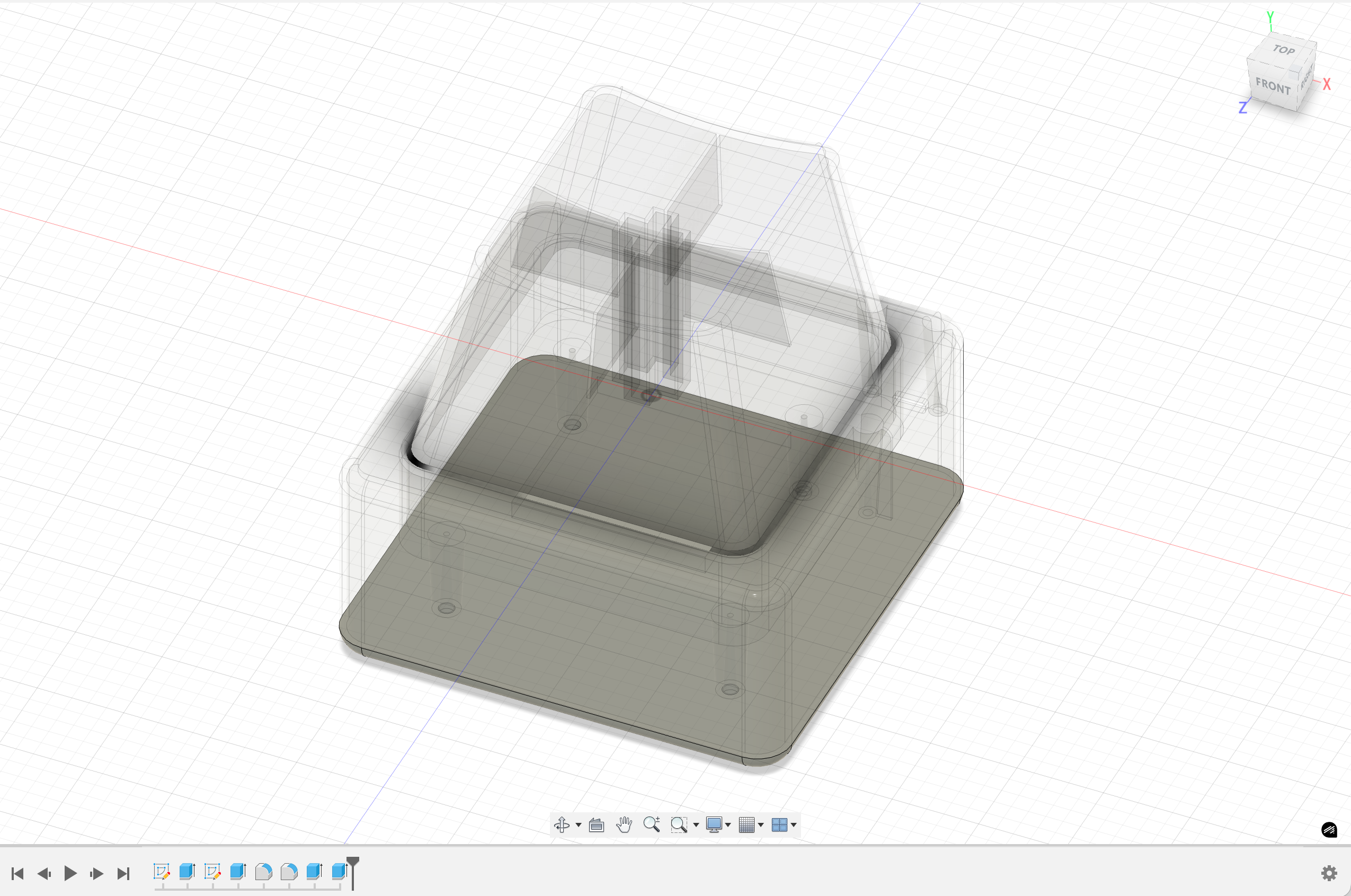
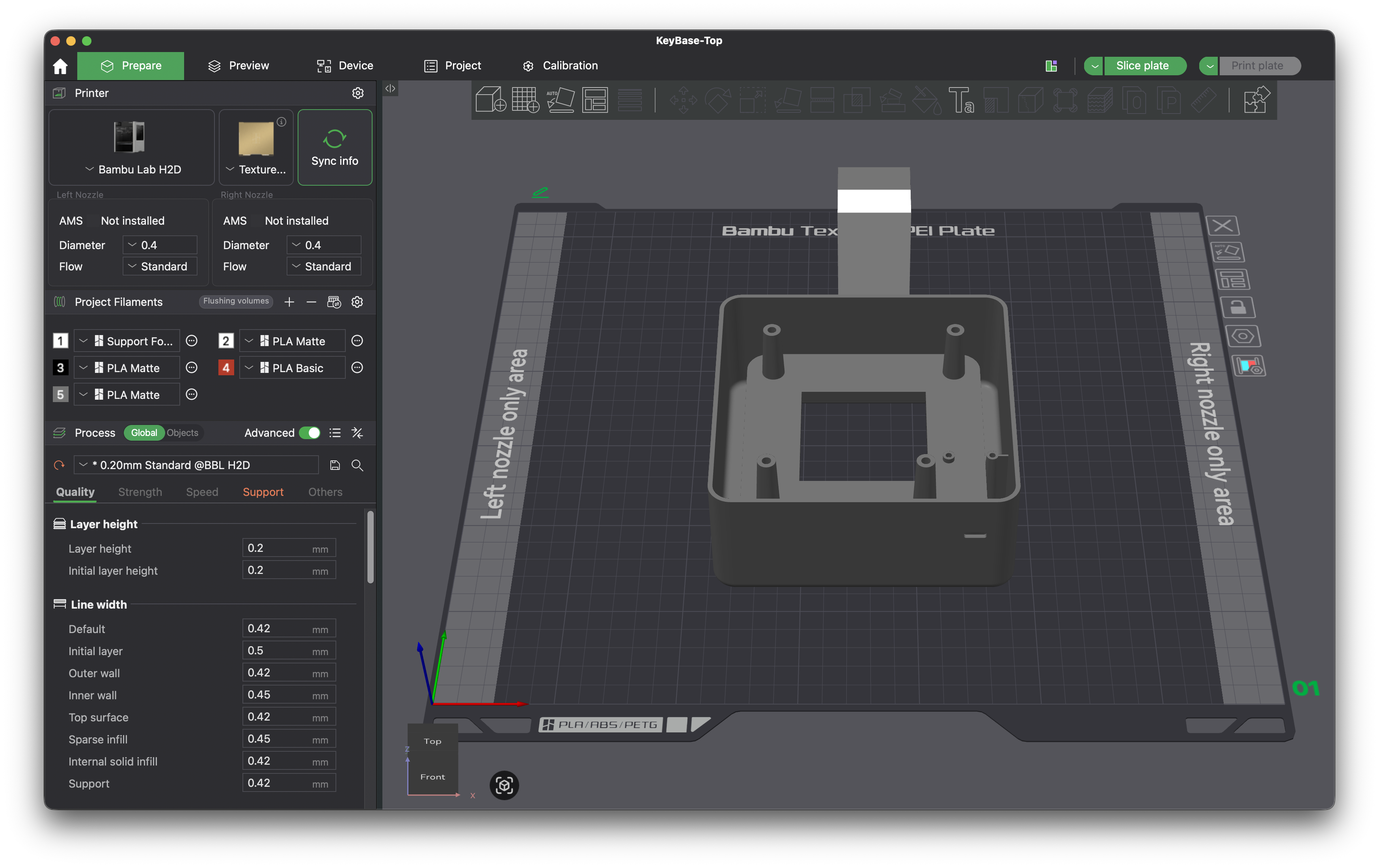
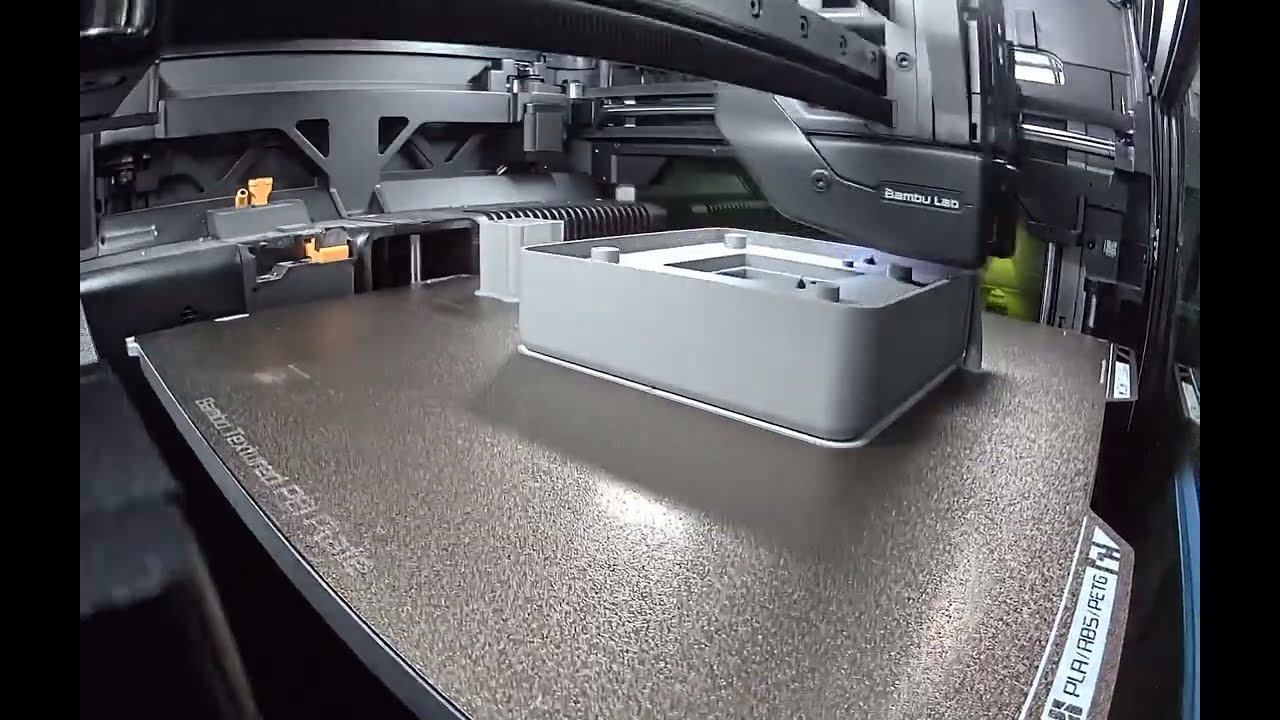
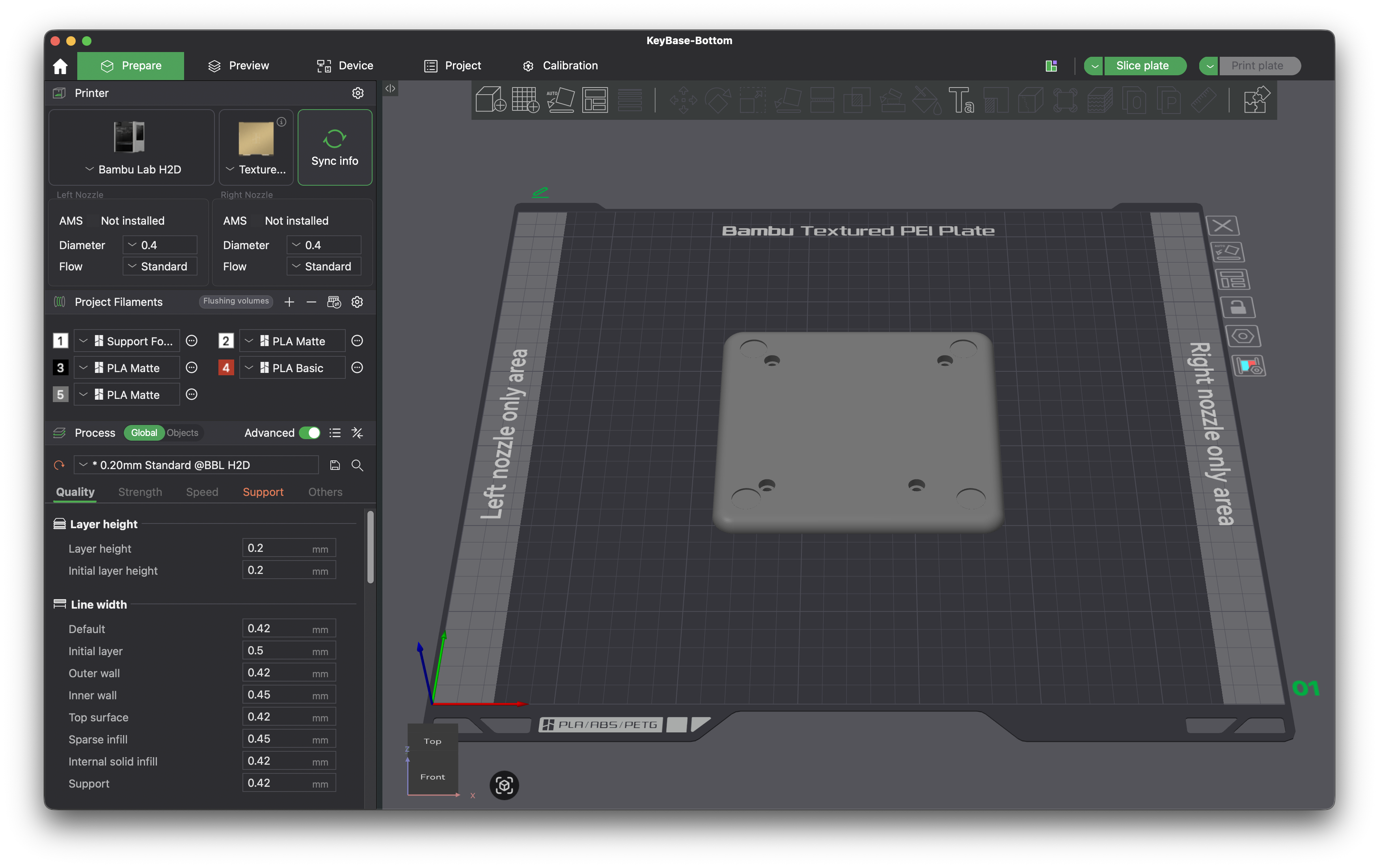
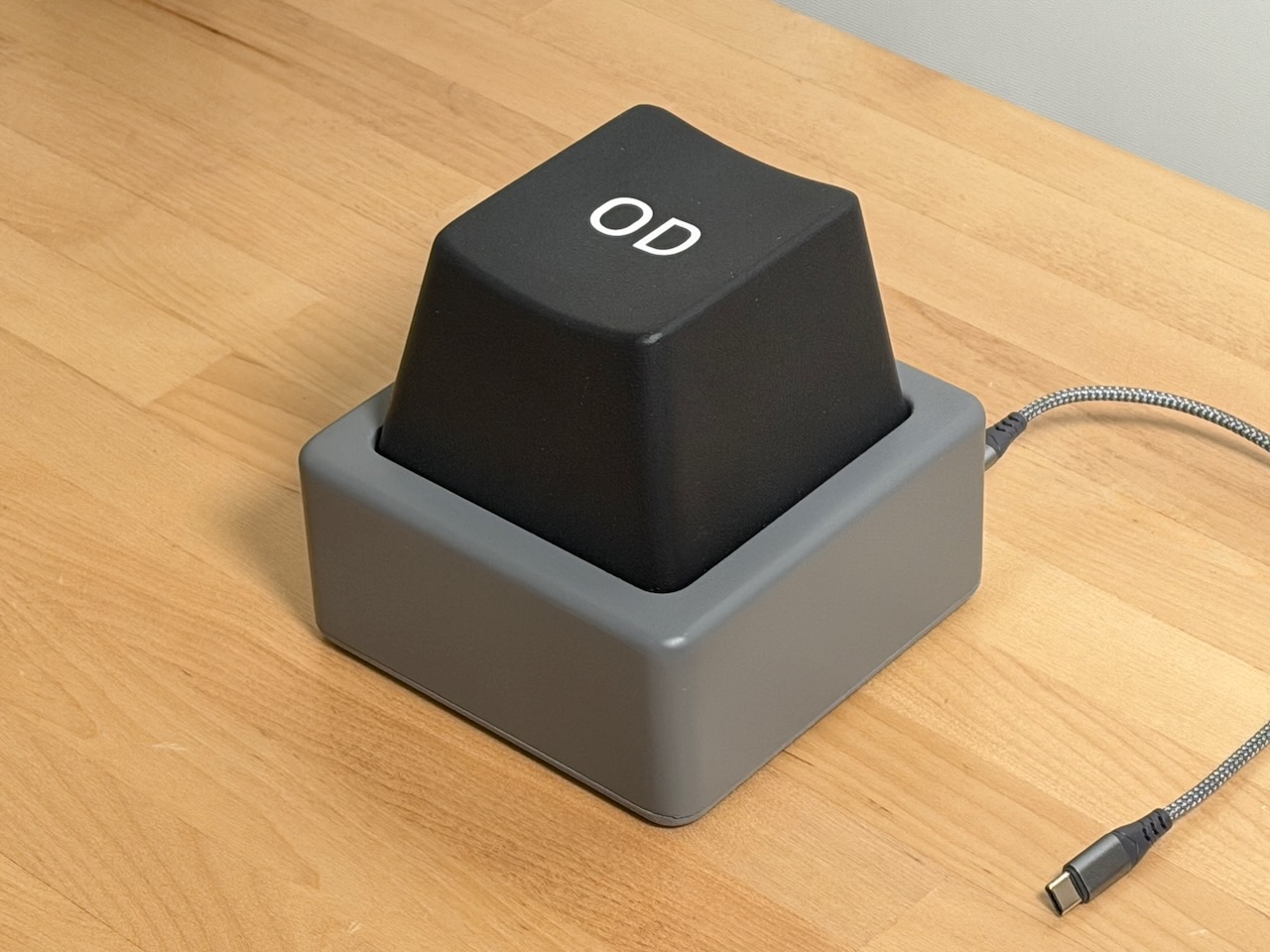
I then modeled a base that the big switch snaps into and that also holds the ESP32-S2 Feather PCBA. I split the base into two parts so that I could screw on the bottom after assembling the switch and PCBA.
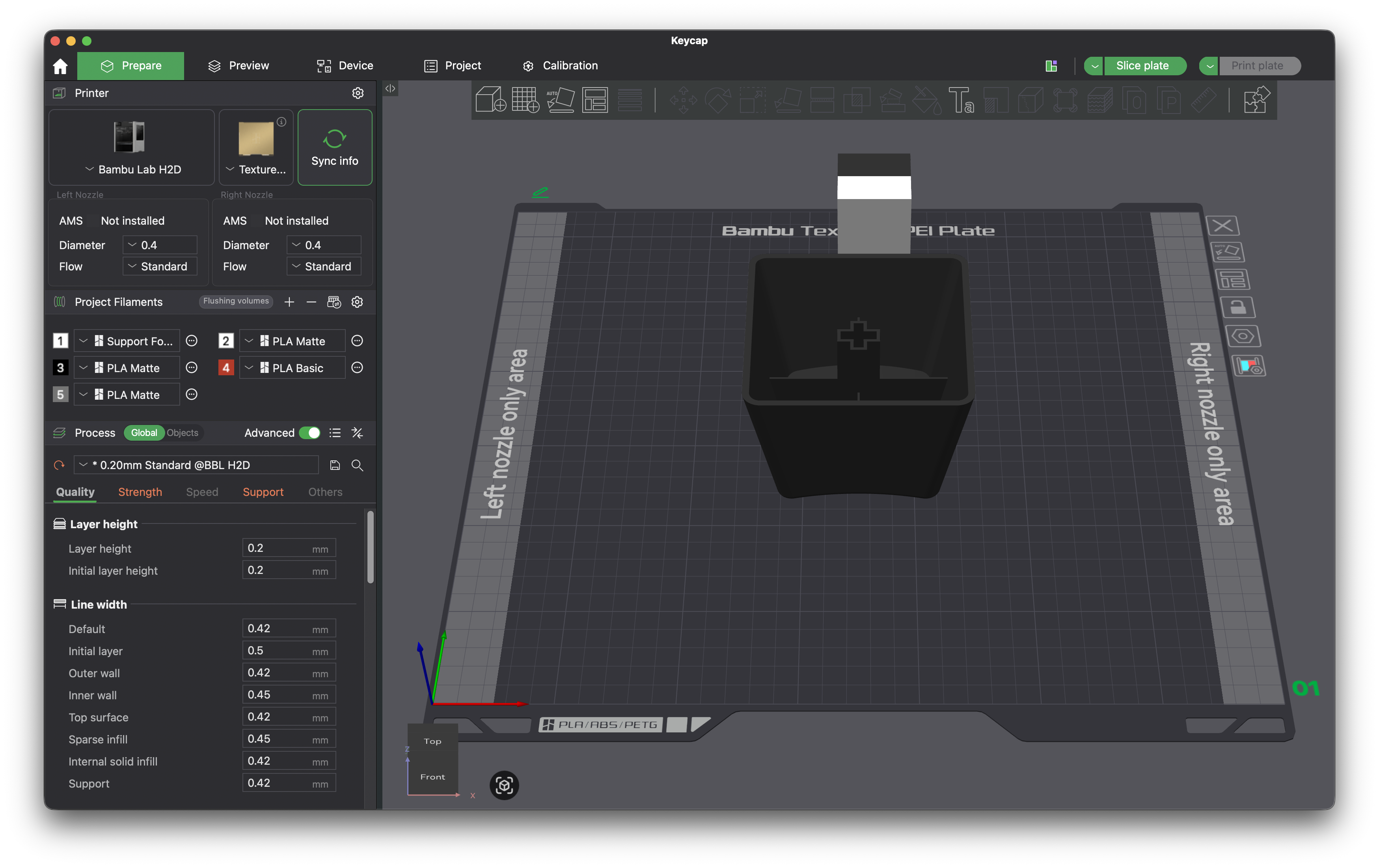
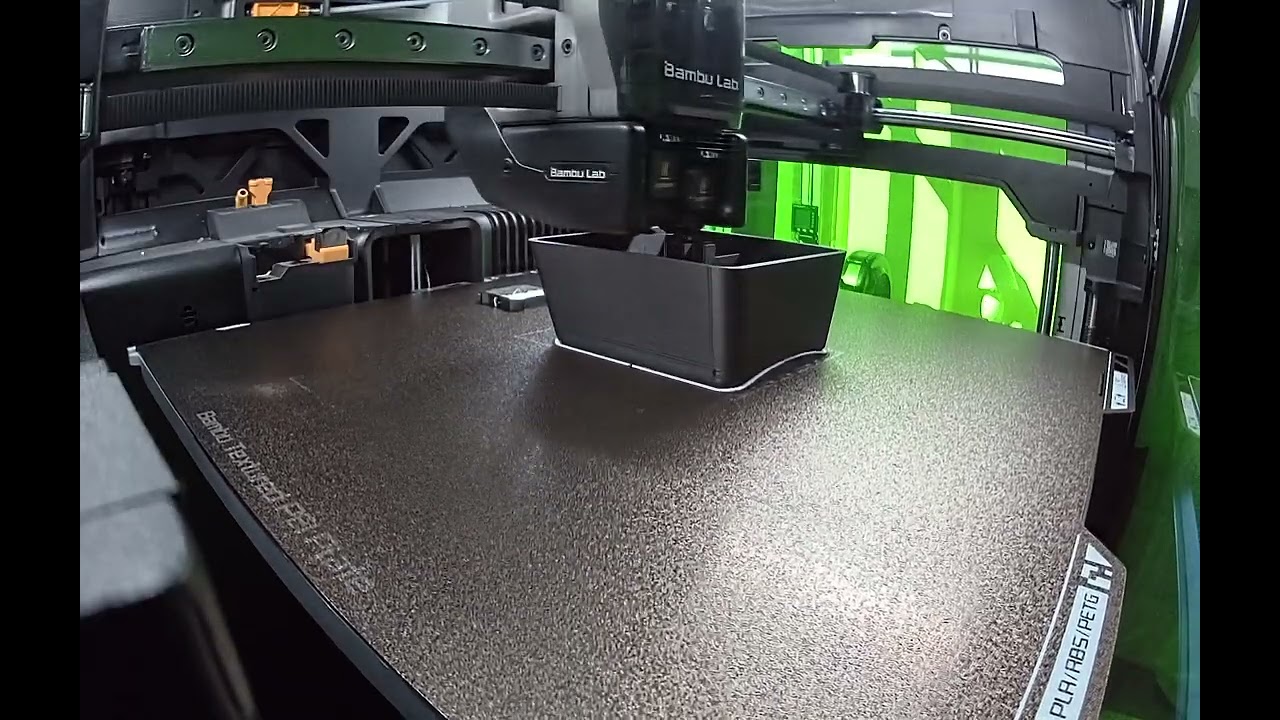
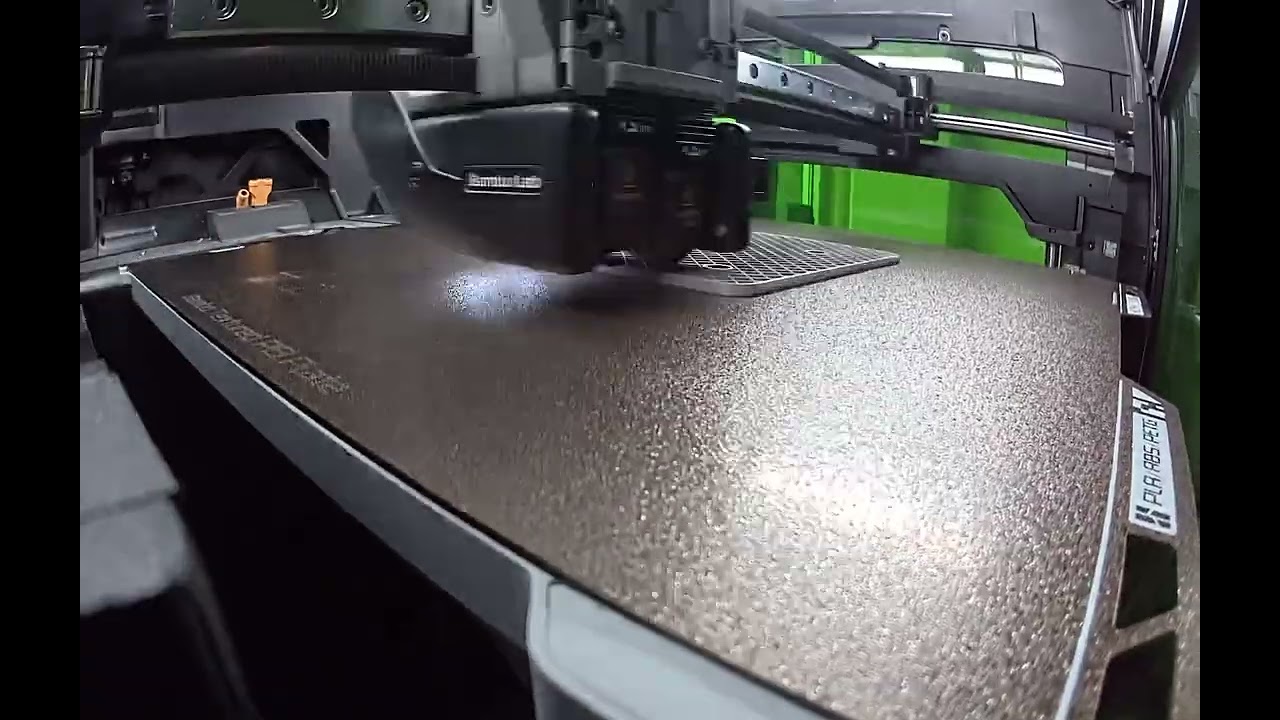
I printed everything in matte PLA on my Bambu Lab H2D.
I had never tried making a cosmetic model before, so I decided to give it a shot rather than use the raw 3D-printed parts. This involved a ton of sanding, priming, sanding, filling, sanding, priming, sanding, and painting. The goal was to turn the raw print:
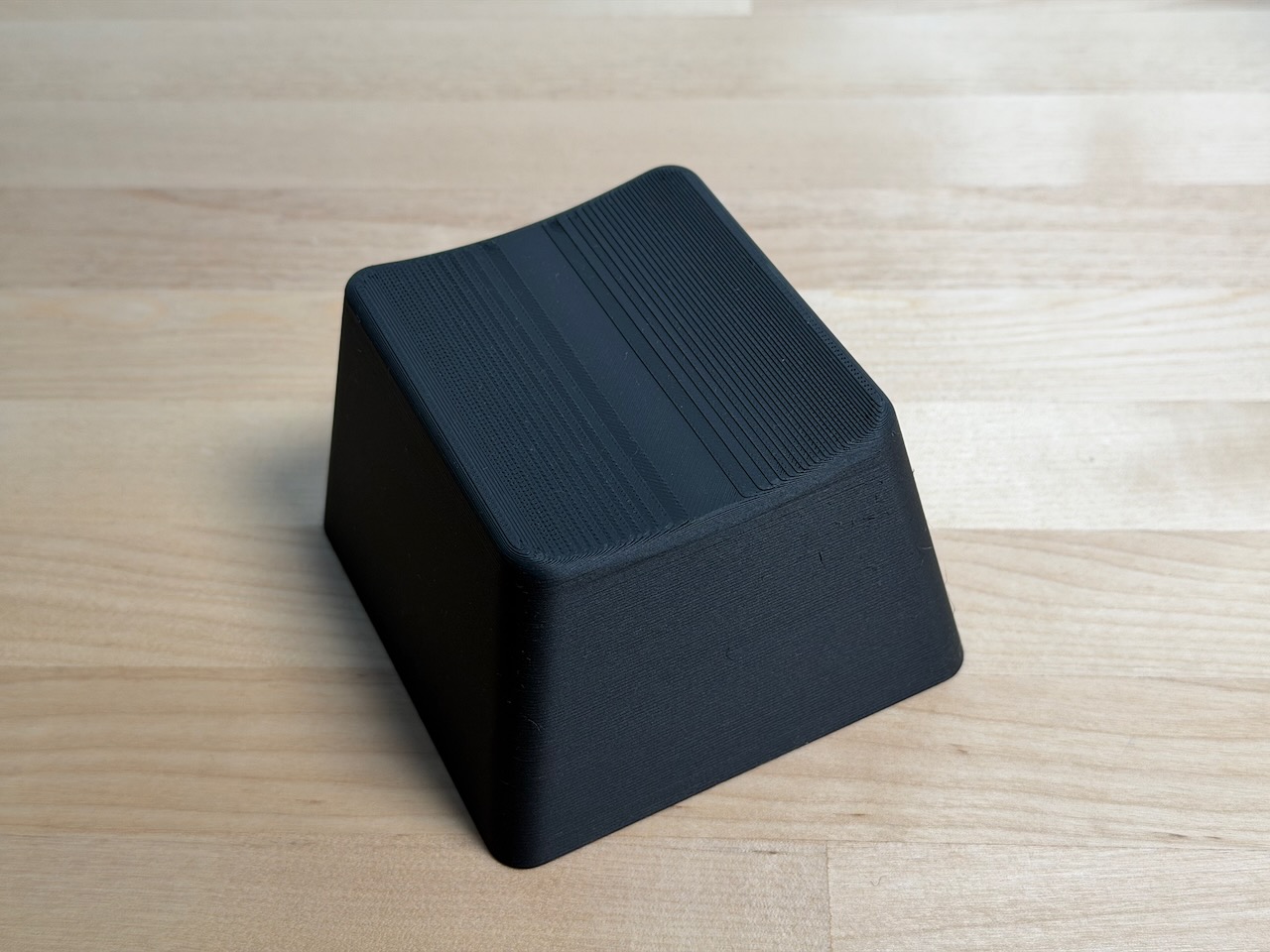
into a nicer-looking version with a refined surface finish and a label:
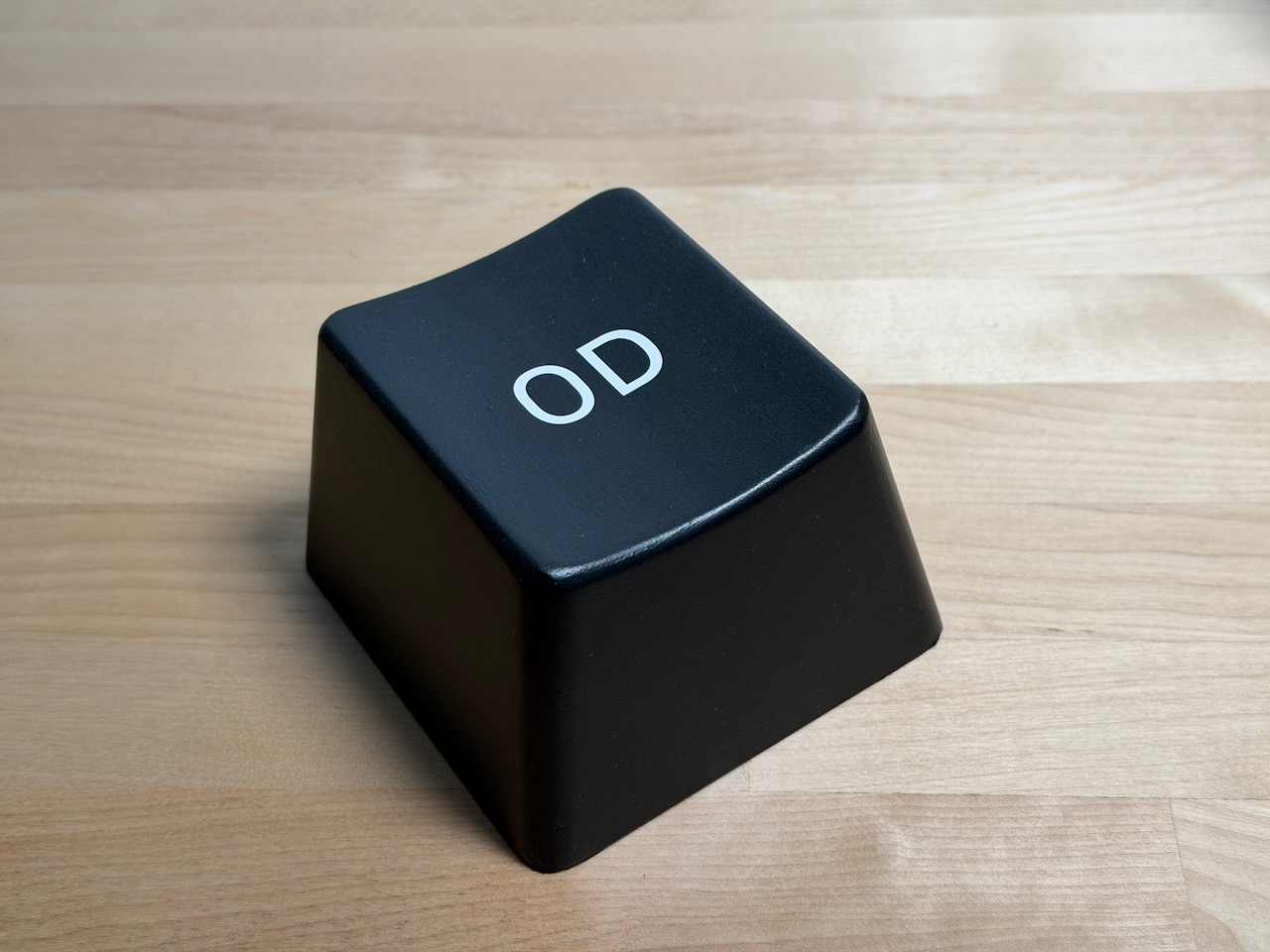
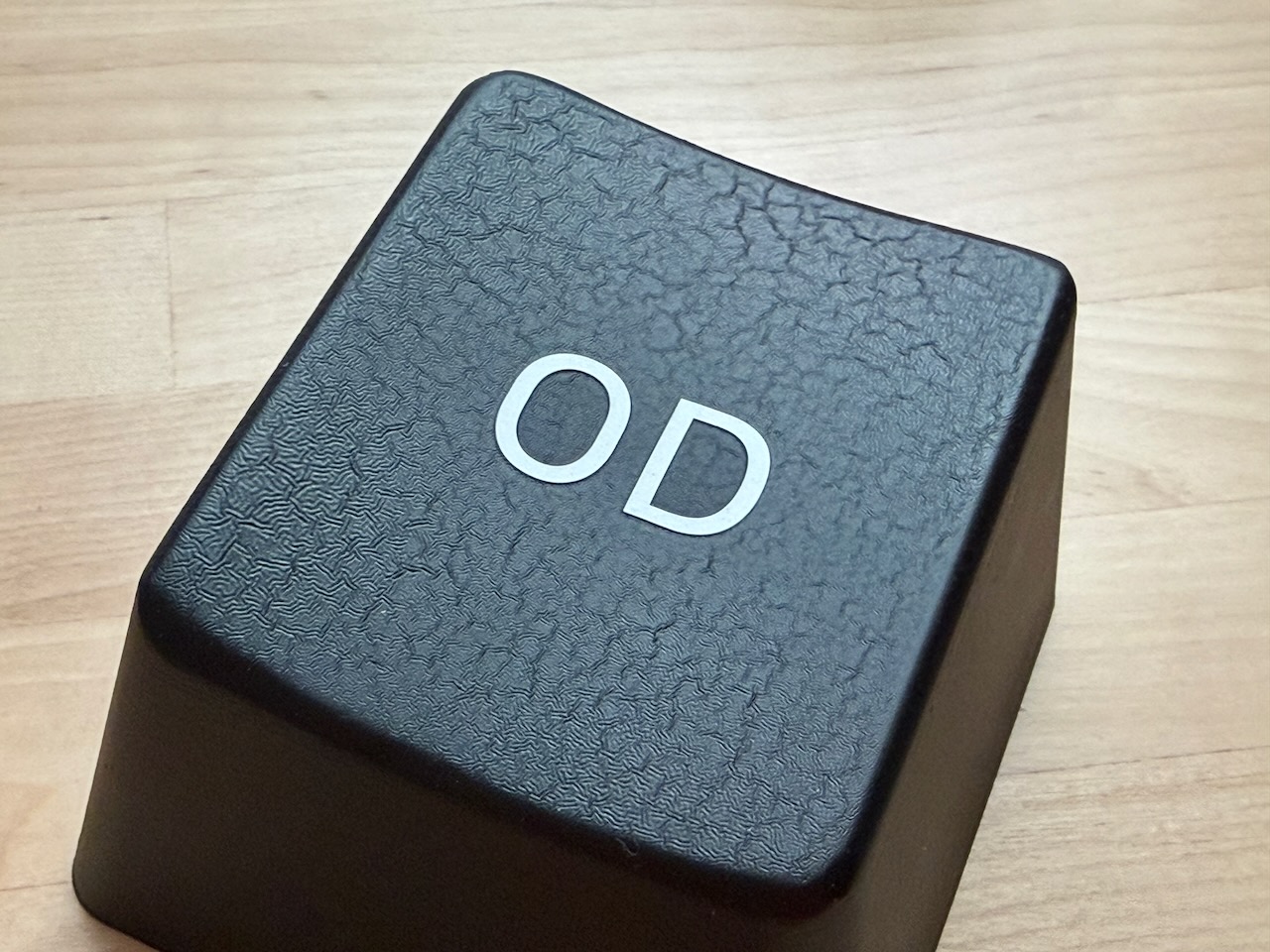
It took a few tries, and I still need to hone my sanding and painting skills, but I’m pretty happy with how it turned out. Here’s the whole thing, freshly assembled.
A few key lessons:
- Primer alone won’t fill deeper cracks. If you try to build up a base of primer thick enough to fill them, you’ll wind up with a gummy mess when sanding. Use putty instead. I had watched videos that warned about this, but I thought my cracks were small enough to get away with primer. They were not.
- If the surface isn’t perfectly smooth before painting, imperfections will stand out once painted. This may seem obvious, but I had a few small imperfections that I could feel but not easily see. Once painted, every one of them was clearly visible.
- Paint in very light coats with the can at a distance to prevent drips. I wound up with a few small ones. Supposedly you can sand drips down and re-paint, but by that point I was tired of sanding and painting.
- If you have mating parts, mate them and prime/sand them together. The parting line on my base is more prominent than it should be because I primed and sanded the top and bottom separately.
- Don’t leave painted PLA models in direct sunlight to dry! PLA softens at relatively low temperatures. Both halves of my base warped irreparably after I left them in the sun following their first coat of paint—a huge waste of printing, sanding, and priming time.
- Don’t put on too much clear coat at once. I accidentally did this to the first keycap—the one I had sanded and painted perfectly—and destroyed it with a wrinkled texture.
All the waiting for prints and paint to dry gave me plenty of time to work on the ODKey firmware. I largely vibe-coded it using Cursor, which did a reasonably good job on the supporting Python scripts but struggled a bit with the firmware. I began with a simple USB HID device that pressed and released the “A” key one second after being plugged into a USB host. Cursor created a reasonable framework for this, though it made several mistakes in the USB descriptor that I had to hunt down and fix. And as I added to the codebase, I often found myself fixing thread-safety issues that Cursor introduced.
I knew I wanted a scripting language for the keypress functionality so that the device could be easily reprogrammed. I looked into DuckyScript™, but couldn’t be arsed to read its huge license. It had way more functionality than I needed anyway, so I decided to roll my own.
I wrote the ODKeyScript specification and told Cursor to generate a Python compiler, a Python disassembler, and a C VM for the language. It handled this surprisingly well. The disassembler helped me verify that the compiler was behaving as expected, and I found and fixed a few small issues that stemmed from under-specification. The VM that Cursor produced was straightforward and reasonable.
The result is an ODKey that enumerates as a USB keyboard and runs a pre-programmed ODKeyScript when the button is pushed. I can also connect to it remotely over WiFi and upload and run scripts through an HTTP interface protected with an API key. I’ve created and tested a series of scripts that let me launch Slack and say entertaining things on behalf of the poor soul who has plugged the ODKey into their computer.
This should be fun. And once the fun has been had, I’ll point my coworker to this repo so he can see how to reprogram and enjoy his giant macro key.